Call of Duty Black Ops 6 offers an impressive level of controller customization. You can tune every aspect to your liking, but it’s easy to get overwhelmed by the sheer amount of options.
If you’re struggling and just want some comfortable settings you can use in all aspects of BO6 and Warzone, here’s a list to get you started.
Controller Settings
Let’s start with Input Settings, which are the first sub-menu in Controller Settings. As the options are split into two sections here, I’ve also done the same so the information is easier to read. I’ll explain why we use specific settings in a moment, but here’s a table if you just want the information:
|
Setting |
Value |
|---|---|
|
Edit Button Layout |
Default or Tactical |
|
Stick Layout Preset |
Default |
|
Horizontal Stick Sensitivity |
6 |
|
Vertical Stick Sensitivity |
6 |
|
Simplified Controls Preset |
Off |
|
Low Motor Strain Preset |
Off |
|
L1 Button Ping |
Off |
|
Swap L1/R1 with L2/R2 |
Off |
I use the Default Button Layout as I hold my controller with a Claw Grip (left index finger on the face buttons). If you don’t do this, I recommend the Tactical configuration, as it allows you to jump while keeping both thumbs on the sticks.
I find that 6 is a decent sensitivity as it’s fast, but not so fast that you can’t be accurate. Some players prefer a lower vertical sensitivity, although I’ve never found it an issue.
Vibration and Deadzones

|
Setting |
Value |
|---|---|
|
Controller Vibration |
Off |
|
Trigger Effect |
Off |
|
Deadzone Left Stick Min |
2 |
|
Deadzone Right Stick Min |
2 |
|
Deadzone Left Stick Max |
80 |
|
Deadzone Right Stick Max |
99 |
We turn Vibration and Trigger Effects off as they don’t provide any value in combat. Call of Duty games all do a great job of relaying information to the player without your controller shaking.
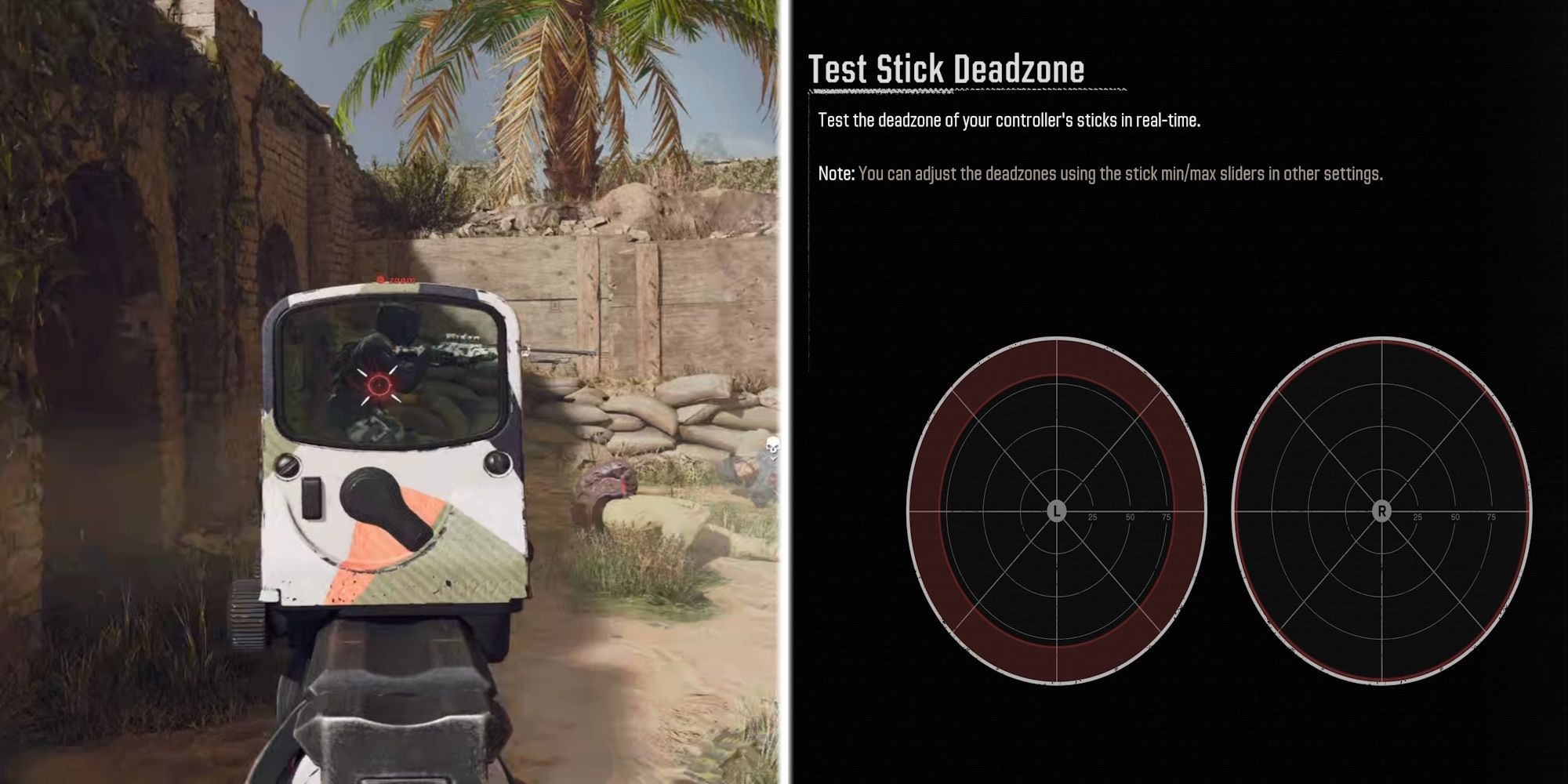
Deadzone settings are pretty important. You want your minimum settings as low as possible but not low enough that they pick up any Stick Drift. My controller is new, so my numbers are low, but you may need them slightly higher. I’ve also reduced the Left Stick Max Deadzone, which helps me maintain control if I slam the control stick around the housing.
Aiming Settings

The Aiming menu governs things like Aim Assist and sensitivity when you aim down the sights. Here’s what I use, and I’ll explain my reasoning afterward:
|
Setting |
Value |
|---|---|
|
Sensitivity Multiplier |
Default |
|
ADS Sensitivity Multiplier |
0.90 |
|
ADS Sensitivity Transition Timing |
Gradual |
|
Aim Response Curve |
Dynamic |
|
Target Aim Assist |
On |
|
ADS Aim Assist |
On |
|
Motion Sensor Behavior |
Off |
Lower your ADS Sensitivity multiplier to 0.90, as it slightly reduces your aiming speed for long-range engagements. It feels sluggish at first, but I’ve used this since Verdansk, and it really helps nail those distant targets. Try it out on a weapon like the XM4 which has low recoil, and see how it feels.
We’ve also changed Aim Assist to Dynamic, which has been the go-to setting for top players since the beta.
I’ve not played Call of Duty with motion controls, but I don’t believe they are without merit. I’ve seen Splatoon 3 professionals use motion controls to great effect, so there’s clearly some value to them.
Motion controls could also be a great accessibility feature if you struggle with the control sticks. I can’t speak with any authority, but don’t rule them out if they may be helpful to you.

Related
Call of Duty Black Ops 6: All Wild Cards Ranked
Take your loadout to the next level.
Movement Settings
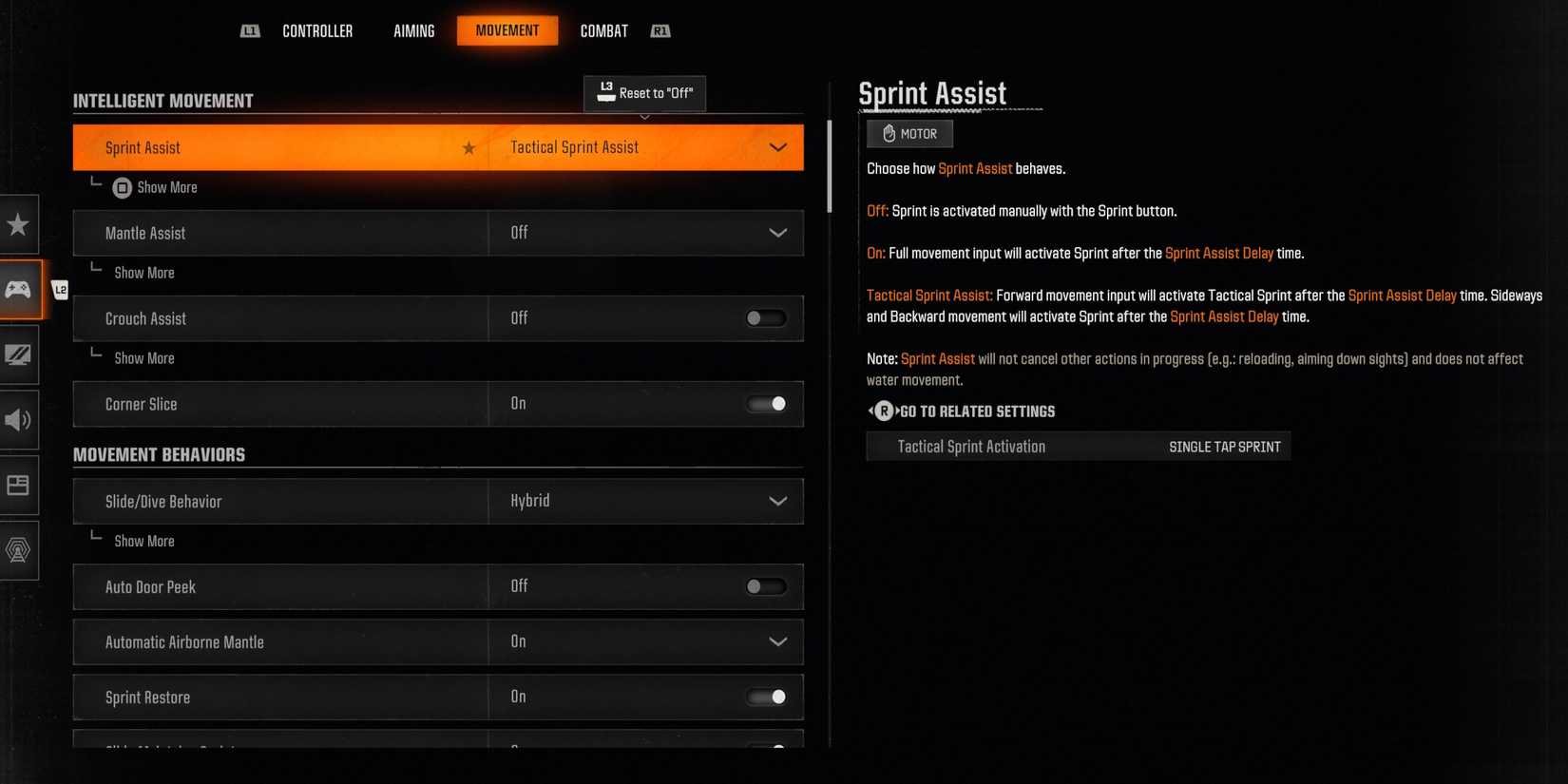
We leave most movement options at their default values, as they make full use of the new omni-movement mechanic:
|
Setting |
Value |
|---|---|
|
Sprint Assist |
Tactical Sprint Assist |
|
Sprint Assist Delay |
0 |
|
Sprint Assist Sideways |
On |
|
Sprint Assist Backward |
On |
|
Mantle Assist |
Off |
|
Crouch Assist |
Off |
|
Corner Slice |
On |
|
Slide/Dive Behavior |
Hybrid |
|
Auto Door Peek |
Off |
|
Automatic Airborne Mantle |
On |
|
Sprint Restore |
On |
|
Slide Maintains Sprint |
On |
|
Parachute Automatic Behavior |
Free Fall |
|
Mantle Cancels Reload |
On |
|
Movement Advanced Settings |
Default |
|
Vehicle Behaviors |
Default |
Hybrid Slide/Dive allows you to slide and dive quickly, depending on your speed. You can tap the button to instantly slide, and briefly holding the button initiates a Dive instead. It’s the most precise way to activate movement abilities, but it does feel a bit strange initially.
Combat Settings

Finally, the Combat settings are all about battle-specific controls, like aiming down the sights or how C4 works. We’ve also changed some settings, which will be helpful in Warzone.
|
Setting |
Value |
|---|---|
|
Aim Down Sights Behavior |
Hold |
|
Weapon Mount Activation |
ADS + Melee |
|
Dedicated Melee Weapon Activation |
Hold Melee |
|
Armor Plate Behavior |
Apply All |
|
C4 Detonation |
All at Once |
|
Equipment Behavior |
Hold |
|
Manual Fire Behavior |
Press |
|
Combat Advanced Settings |
Default |
|
Overlay Advanced Settings |
Default |
I know there’s a lot to take in with controller settings, but most of these are default values and don’t require tuning unless you’re after something very specific.
There is a golden rule for settings, which I’ve found very useful over the years. Stick with it. Any changes you make will take a while to get used to, but you can confuse things if you don’t give yourself time to adjust. Keep at it, and I know you’ll nail those 360-kill cams in no time!
These settings should work great in all game modes in Black Ops 6; just make sure to swat up on your perks if you don’t want to get your butt kicked in Zombies.

Next
Call of Duty Black Ops 6 Campaign Review
It is either the last good Call of Duty made, or the first of a new era with good titles again.